CuriousRubik

Recent Posts

Know how to add “Menu Bars” in Suite Commerce Advance websites

Posted by CuriousRubik on 24 Aug, 2014

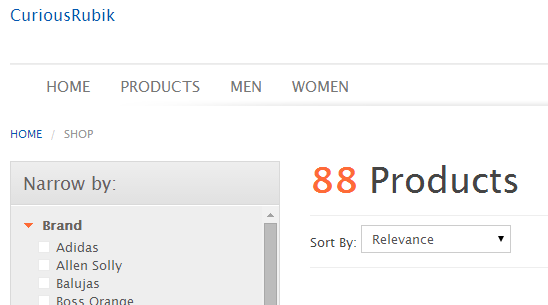
To add Menu bars in the “Configuration.js” in “navigationTabs” section and need to provide the URL for each Menu Bar we added here.

SuiteCommerce

Read More

Topics: ECOMMERCE

Know how to add “Location & Available Quantity” on Suite Commerce Advance item detail page.

Posted by CuriousRubik on 23 Aug, 2014
  • Location & Available Quantity

To add the fields on Item Details Page, Need to update the “item_details.txt” file which fetches the details of Items from the Facet Fields which we define under Website Set up -> Facet Fields sub tab.

Read More

Topics: ECOMMERCE

Know how to Issue Customer Refund through Gift Certificate

Posted by CuriousRubik on 07 Aug, 2014

Perform the following steps to Issue a Customer Refund to a customer through a “Gift Certificate”

  • Open the credit memo of the customer
  • Create a new Invoice instead of issuing a Refund
  • In the Invoice select the Gift Certificate Item
  • Select the same ‘Customer’ name used in the ‘Credit Memo’
  • A new code will be sent to the email address entered in the Gift Certificate Column
  • Save the Invoice after entering all the applicable details
  • The Status of the Invoice will be ‘Open’
  • Use the ‘Credit Memo’ as a ‘Payment’ for the ‘Invoice’
  • Accept the Payment from the Invoice
  • On the Payment page, navigate to Invoices subtab of the ‘Applies’ tab
  • Check the apply box next to the Invoice
  • Navigate to Apply > Credits and check the ‘Apply’ box on the credit memo
  • Check the Payment Amount field, change it to $0 and make sure that ‘To Apply’ and ‘Applied’ amounts are equal.
  • Save the Payment transaction
Read More

Here is the reason why NetSuite shows different amounts for the same transaction in searches/list

Posted by CuriousRubik on 06 Aug, 2014

Scenario:

Read More

Know how to create a sub list on specific transaction type

Posted by CuriousRubik on 04 Aug, 2014
  1. Go to Setup > Customization > CRM Fields > Click New.
  2. Enter a value on Label field.
  3. Choose List/Record on Type field.
  4. Choose Transactions on List/Record field.
  5. Check on Store Value field.
  6. Check on Record is Parent.
  7. On Applies to > check on Event.
  8. On Display > Parent Subtab assigned your preferred subtab.
  9. On Sourcing & Filtering > Set Filter Using to Type.
  10. Set Value is field to Sales Order.
  11. Click Save.
Read More

Topics: Customization

Minimize the Spaces in between the Transaction Body Fields when Printing PDF Layouts

Posted by CuriousRubik on 31 Jul, 2014
  1. Go to Customization > Forms > Transaction PDF Layout > Choose PDF Layout
  2. Highlight the Body Field Element. The border will turn blue.
  3. On the Editor window on the left, under Element Size, set Height as 1.0.
  4. Click Save.
Read More

Topics: Customization

Error: "This item cannot be deleted because it has child items", here is the resolution

Posted by CuriousRubik on 29 Jul, 2014


This warning message is usually encountered when a user is trying to delete a record in the system and it has child records as indicated under History> Transactions

Read More

Topics: Customization

How to “Terms and Conditions” URL document on Transaction Printouts.

Posted by CuriousRubik on 28 Jul, 2014

1. Create a Terms and Conditions like a PDF or a Word document.
2. Upload the Terms and Conditions file to the File Cabinet.
3. Navigate to Documents > File > File Cabinet > Find a folder to save the file.
4. Click Add File.
5. When the file is uploaded, edit and mark Available without Login.
6. Copy the URL.
7. Click Save. 
8. Navigate to Setup > Customization > Transaction Body Field > New.

  • Select Hyperlink in the Type field
  • Mark Store Value
  • Enter a Label for the field

9. In the Applies to tab mark Sales.
10. In the Display tab

Read More

Topics: Customization

Know how to add ‘Vendor’ name in the print of ‘Packing Slip’

Posted by CuriousRubik on 23 Jul, 2014

By default Vendor name is not available in the standard column of packing slip print, perform the below steps as a work around.

Read More

Featured E-Books

  • NetSuite CuriousRubik
  • NetSuite CuriousRubik
  • NetSuite CuriousRubik
  • NetSuite CuriousRubik
  • NetSuite CuriousRubik
  • NetSuite CuriousRubik
  • NetSuite CuriousRubik
  • NetSuite CuriousRubik
  • NetSuite CuriousRubik
  • NetSuite CuriousRubik
  • NetSuite CuriousRubik
  • NetSuite CuriousRubik
  • NetSuite CuriousRubik
  • NetSuite CuriousRubik
  • NetSuite CuriousRubik
  • NetSuite CuriousRubik
  • NetSuite CuriousRubik
  • NetSuite CuriousRubik
  • NetSuite CuriousRubik
  • NetSuite CuriousRubik
  • NetSuite CuriousRubik
  • NetSuite CuriousRubik
  • NetSuite CuriousRubik
  • NetSuite CuriousRubik
  • NetSuite CuriousRubik
  • NetSuite CuriousRubik
  • NetSuite CuriousRubik
  • NetSuite CuriousRubik
  • NetSuite CuriousRubik
  • NetSuite CuriousRubik
  • NetSuite CuriousRubik
  • NetSuite CuriousRubik
  • NetSuite CuriousRubik
  • NetSuite CuriousRubik
  • NetSuite CuriousRubik
  • NetSuite CuriousRubik
  • NetSuite CuriousRubik
  • NetSuite CuriousRubik
  • NetSuite CuriousRubik
  • NetSuite CuriousRubik
  • NetSuite CuriousRubik
  • NetSuite CuriousRubik
  • NetSuite CuriousRubik
  • NetSuite CuriousRubik
  • NetSuite CuriousRubik
  • NetSuite CuriousRubik

Follow Us

twitterfacebook3linkedin1google_plus2play125


badge Original

We are proud to announce that we have been awarded the Prestigious Partner Of the Year Award @ NetSuite SuiteWorld, a global event of NetSuite with over 7000+ attendees and hundreds of partners. CuriousRubik is humbled and honored to win this award, and motivated to continue developing SuiteApps and delivering best in class NetSuite services globally.