
To reprint checks:
- Go to Customization > Forms > Transaction PDF Layout > Choose PDF Layout
- Highlight the Body Field Element. The border will turn blue.
- On the Editor window on the left, under Element Size, set Height as 1.0.
- Click Save.
0 Comments Click here to read/write comments
Topics: Customization
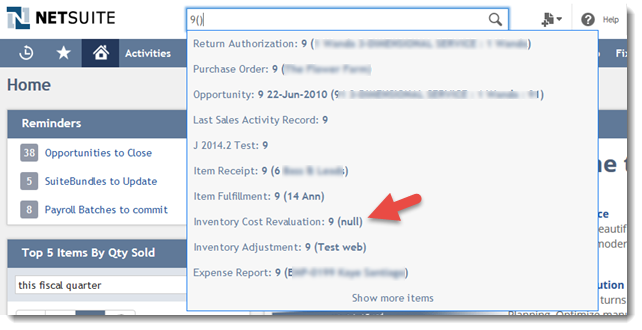
When searching for transactions using Global Search the quick results will display the transaction name followed by the customer/vendor name in parenthesis:
0 Comments Click here to read/write comments
Topics: Customization
This warning message is usually encountered when a user is trying to delete a record in the system and it has child records as indicated under History> Transactions
0 Comments Click here to read/write comments
Topics: Customization
In NetSuite Payment is not allowed in any currency other than what is set on the customer record, but on a scenario where a Customer currency is different from a Bank Account the following steps will work as a solution.
0 Comments Click here to read/write comments
1. Create a Terms and Conditions like a PDF or a Word document.
2. Upload the Terms and Conditions file to the File Cabinet.
3. Navigate to Documents > File > File Cabinet > Find a folder to save the file.
4. Click Add File.
5. When the file is uploaded, edit and mark Available without Login.
6. Copy the URL.
7. Click Save.
8. Navigate to Setup > Customization > Transaction Body Field > New.
- Select Hyperlink in the Type field
- Mark Store Value
- Enter a Label for the field
9. In the Applies to tab mark Sales.
10. In the Display tab
0 Comments Click here to read/write comments
Topics: Customization
If the vendor sends the refund via cash or check in the currency other than vendor’s currency, we need to record the deposit in vendor’s currency via journal entry
Journal Entry
- Go to Transactions > Financial > Make Journal Entries
- Select the Currency, Posting Period and enter Exchange Rate
- In the first line, if the vendor amount is deposited to a bank account select the bank account and enter the amount in the Debit column
- In the second line, select the Accounts Payable account and enter the amount in Credit column and click on save.
0 Comments Click here to read/write comments
By default Vendor name is not available in the standard column of packing slip print, perform the below steps as a work around.
0 Comments Click here to read/write comments

A task record stores details about a unit of work to be completed. NetSuite supports the creation of two different types of tasks: CRM Tasks and Project Tasks. The Tasks import supports the import of CRM tasks, not project tasks. CRM tasks, usually labeled Tasks in the NetSuite user interface, do not have to be associated with projects.
0 Comments Click here to read/write comments
Topics: Customization






























































 Twitter
 Linkedin
 Youtube
 Google +
 Face Book